

We’ve always built Bear to be a sanctuary for your writing, but we know life isn’t only text. There are invoices from clients, snapshots of your pets, quick sketches of your dream living room, and the occasional meme that absolutely must be preserved for future generations.
We’ve put a lot of thought into how media lives inside Bear, so here’s a look at how Bear helps you build a richer, more vibrant digital library.
Images
Adding images like a pro
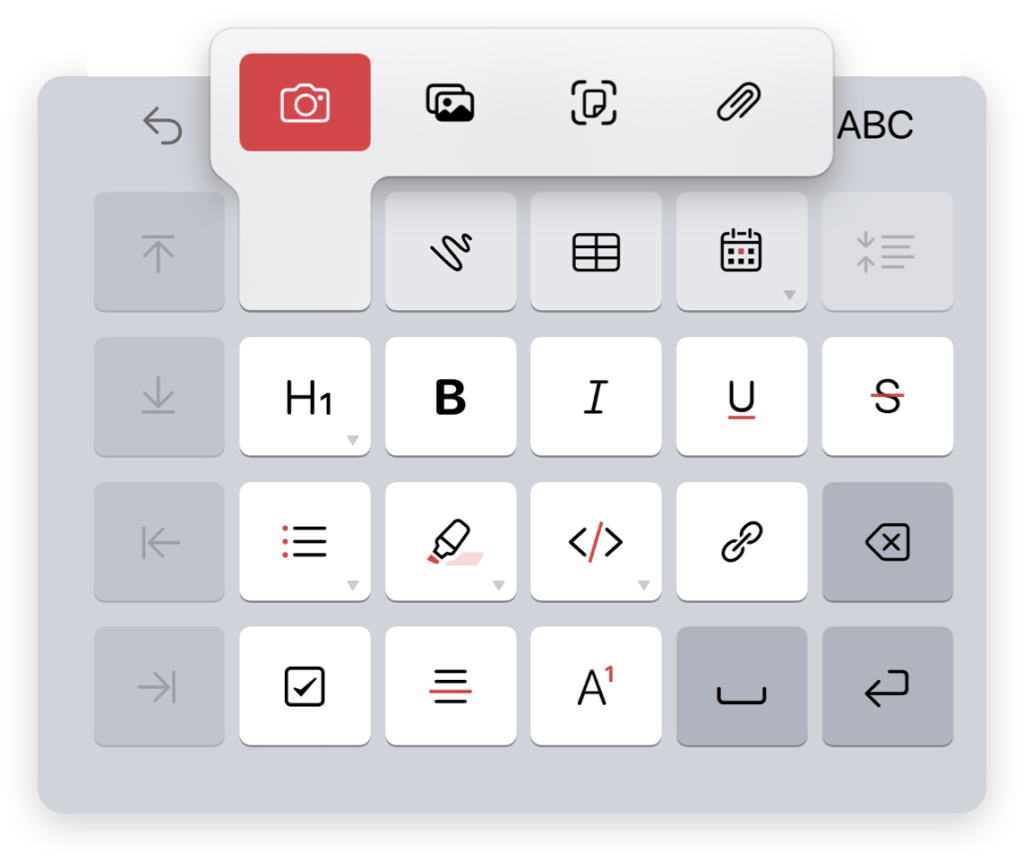
Adding images to Bear is as easy as writing a sentence. In addition to inserting from the menu bar or BIU keyboard, here are a few quick ways to drop an image into a note whether you’re at your desk or on the move:
The magic of Continuity: Thanks to Apple’s Continuity, you can copy an image on one device and paste it directly into a note on another. On Mac, you can even right-click to snap a photo with your iPhone or iPad, right where you need it.
Drag and drop: Grab an image from a folder or a browser and drop it exactly where it belongs in your note. Works on iOS, too!
Share Menu (iOS only): Use the system Share Menu to send images straight into Bear. You can save to a new note or drop the image at the start or end of a recent one.
Home Screen quick action: Long-press the Bear icon on your Home Screen to snap a photo that starts a brand-new note instantly. That’s right, you don’t even need to open the app.

Built-in image editing
You don’t need a complex photo editor to make images look beautiful inside your notes.
On Mac, you can resize images by dragging the corner, and here’s the best part: they’ll automatically snap to align with other images in your note. It’s a small detail that makes your notes look polished and professional. See it in action: How to perfectly align photos in Bear.
On iOS, a quick long-press on an image reveals options to resize, crop, or rename—so your images look exactly the way you envisioned.
And for the meme collectors among us: Bear supports native GIF playback to keep your notes energetic and fun.

PDFs
Bear treats PDFs with the respect they deserve, giving you full control over how they occupy your space.
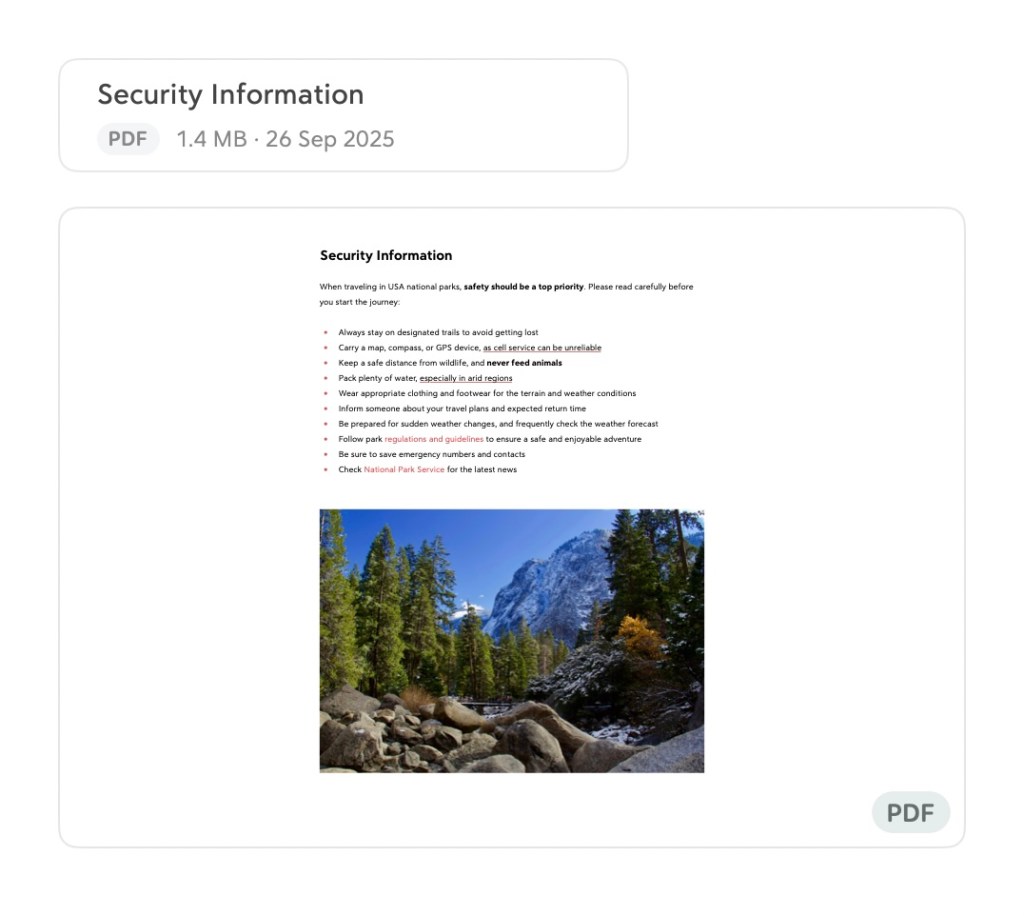
Preview or hide: Your space, your choice. Show a full PDF preview for quick reference, or collapse it into a clean, tidy block when you just need it tucked away.
Document scanning: Use the built-in document scanner to consolidate physical receipts, handwritten notes, or sketches into a single PDF—stored safely in your notes for future reference.
Sketches
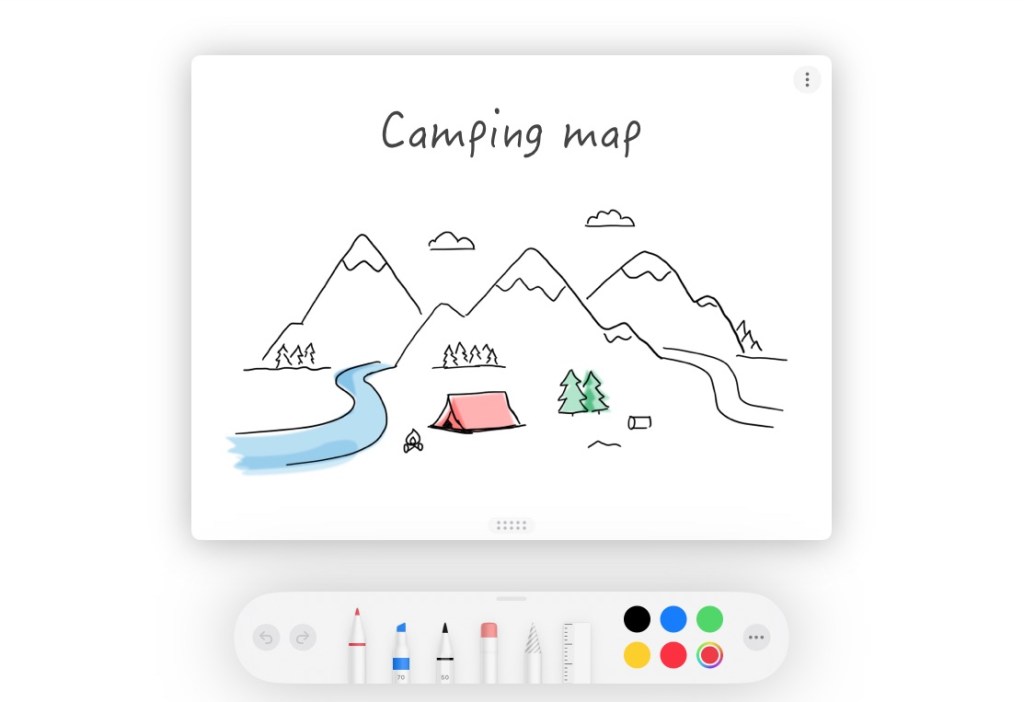
For the architects, the doodlers, and the visual thinkers, Bear works beautifully with Apple Pencil to bring ideas straight from your mind to your notes. Bear offers a suite of handy tools to elevate your sketching experience: choose canvas styles like dotted or lined backgrounds, extend your sketch space as an idea grows, and export a sketch on its own when you don’t want to share the whole note.
And more
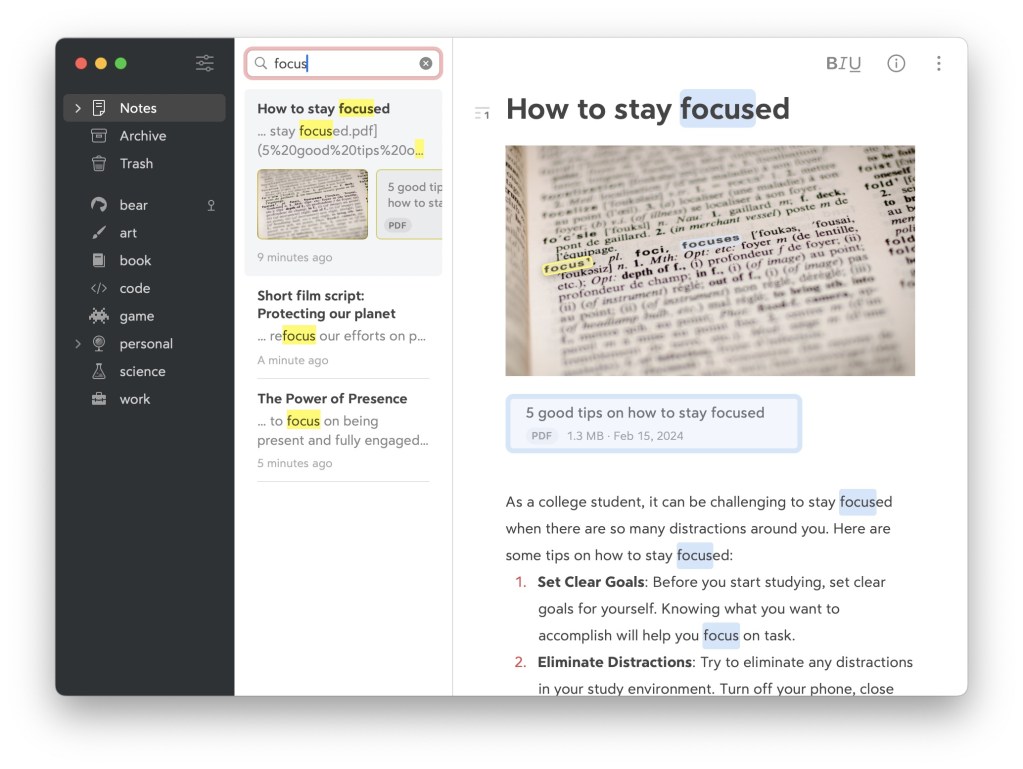
Bear also offers a few extra ways to keep your media organized and your workspace feeling light.
🔍 OCR search: With Bear Pro, you can search text inside images and PDFs, so that one specific receipt is always just a keyword away.
✨ A clean note list: If you prefer a tidier view, you can hide attachment previews in your Note List settings. Less clutter, more focus.
☁️ Seamless syncing: Bear supports high-quality video and large attachments, and we optimize the experience within iCloud’s 250MB limit to keep your sync fast and reliable across all devices.
Write naturally
We believe the best tools are the ones that disappear. Whether you’re a minimalist writer or a visual curator, our goal is to remove every last bit of friction between your inspiration and your screen—leaving you free to focus on what matters most.
Just write naturally. We’ll handle the rest.
Reach out to us on our Community Forum, Reddit, X (Twitter), Bluesky, or directly at bear@shinyfrog.net to tell us what you think. Stay tuned for more tips!
Happy writing!
🐻❤️📝