
There are many ways to stay focused, and keeping unnecessary things out of the way helps a lot. Today we are introducing Workspace, a new feature that makes tags even more powerful to help you focus on what matters without the rest getting in the way.
What is Workspace?
Workspace lets you turn any tag into a dedicated writing environment. Once set, Bear shows only the notes under that tag. The Sidebar shows only the tags related to it so you can use it to filter and navigate your notes, and all the Sidebar entries such as archive and Trash will also update accordingly. Everything else steps aside, the world is now zoomed in on exactly what you need right now.
How to Set a Tag as Workspace

Right-click any tag in the Sidebar and select “Use as Workspace.” Switching between workspaces or returning to the full notes view is just as easy, all from the same menu. For more details, check out this support page.
Workspace in Your Daily Workflow
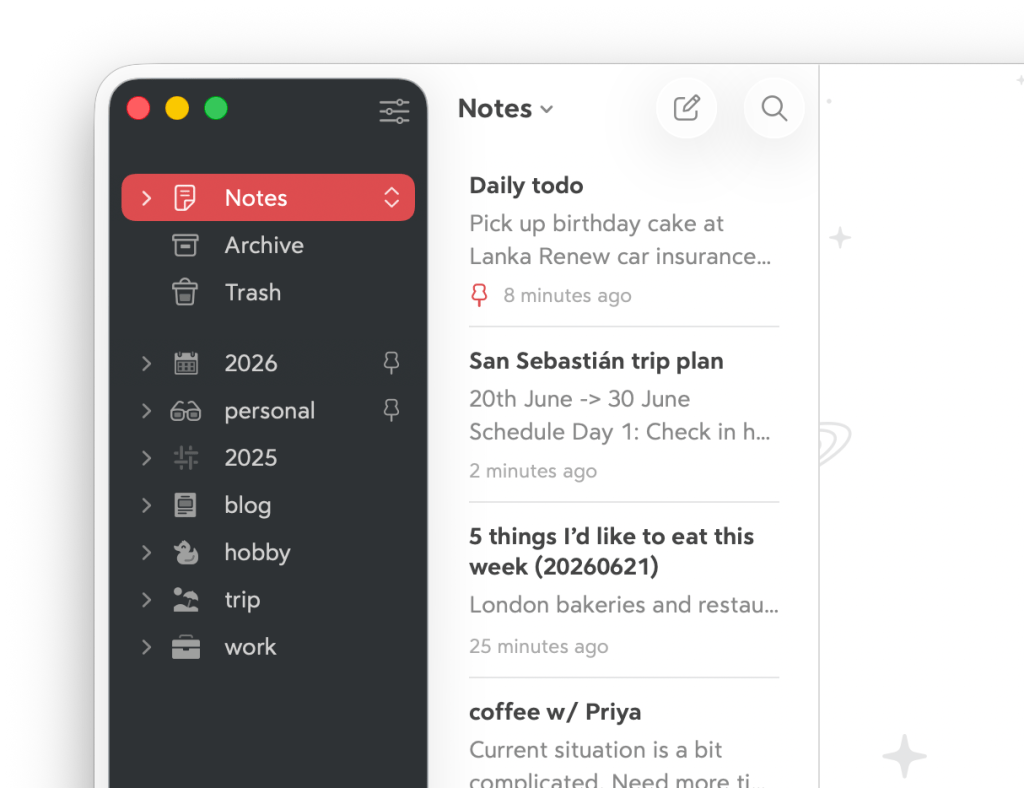
The best way to understand Workspace is to see it in action. Take Alex, a project manager who juggles multiple work projects during the day and writes a food blog in his spare time.
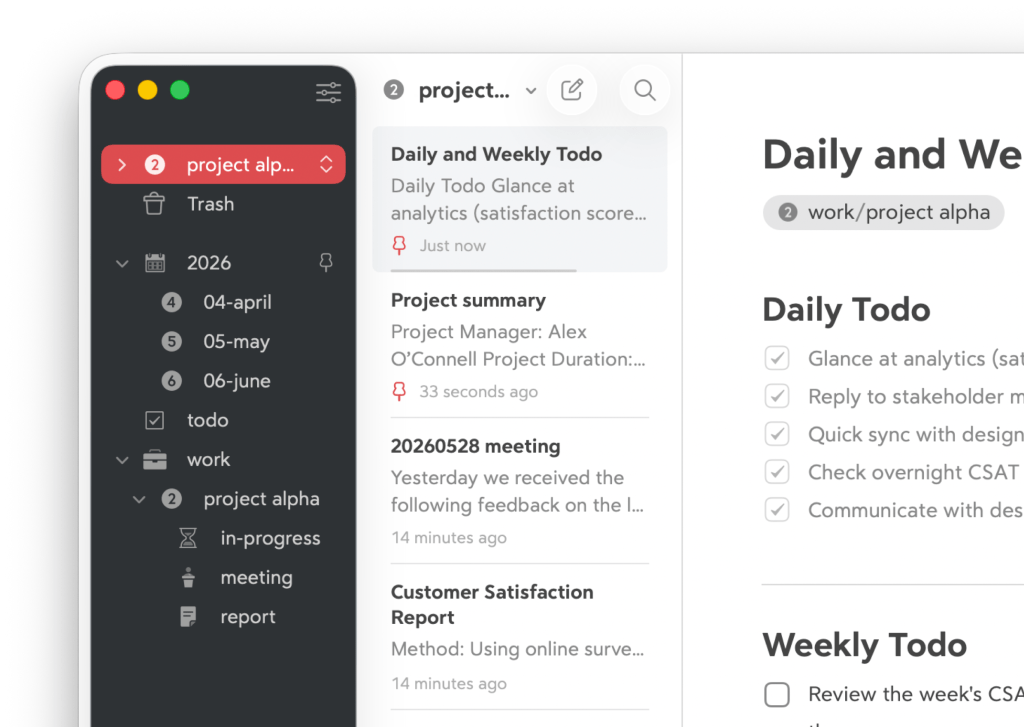
At work, Alex sets #project alpha# as his Workspace and Bear shows only those notes, nothing else. In the afternoon, when he needs to prepare a presentation for Project B, he switches to #project beta#. All his relevant notes are right there, and since Workspace hides everything else, he can share his screen with colleagues without worrying about exposing unrelated project details or personal notes. He can even use nested date tags like #2026/06 to dig into notes from a specific campaign period.
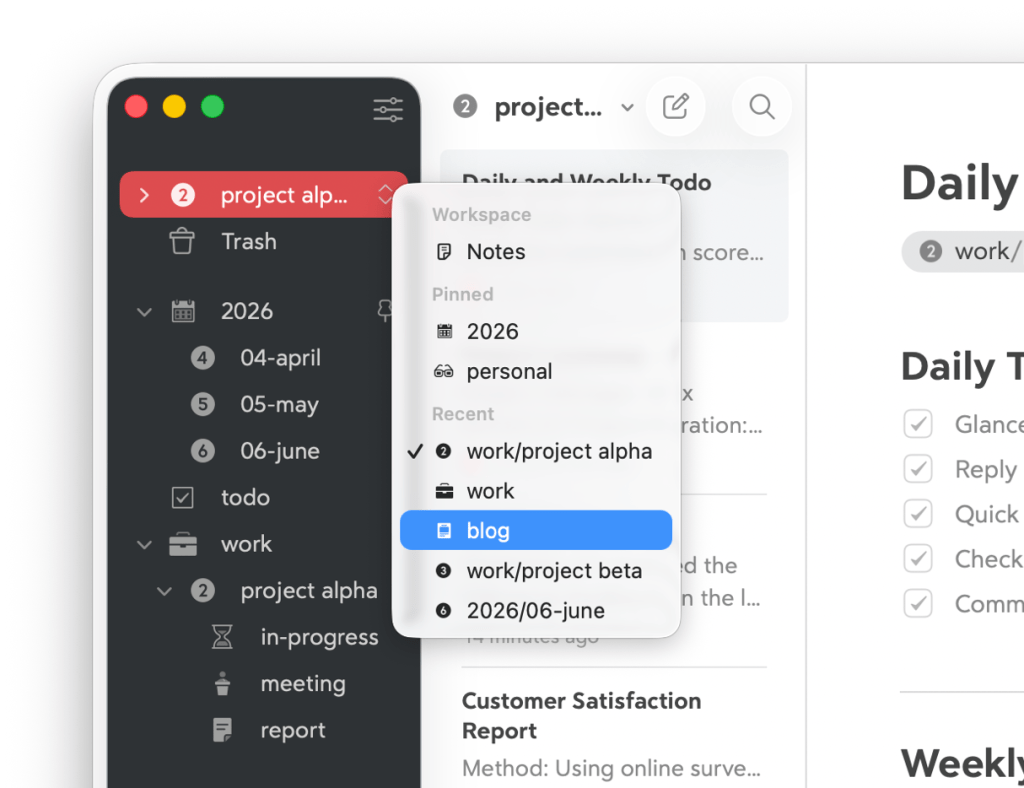
When Alex gets home, he switches to his #blog Workspace and Bear shifts entirely into that world.
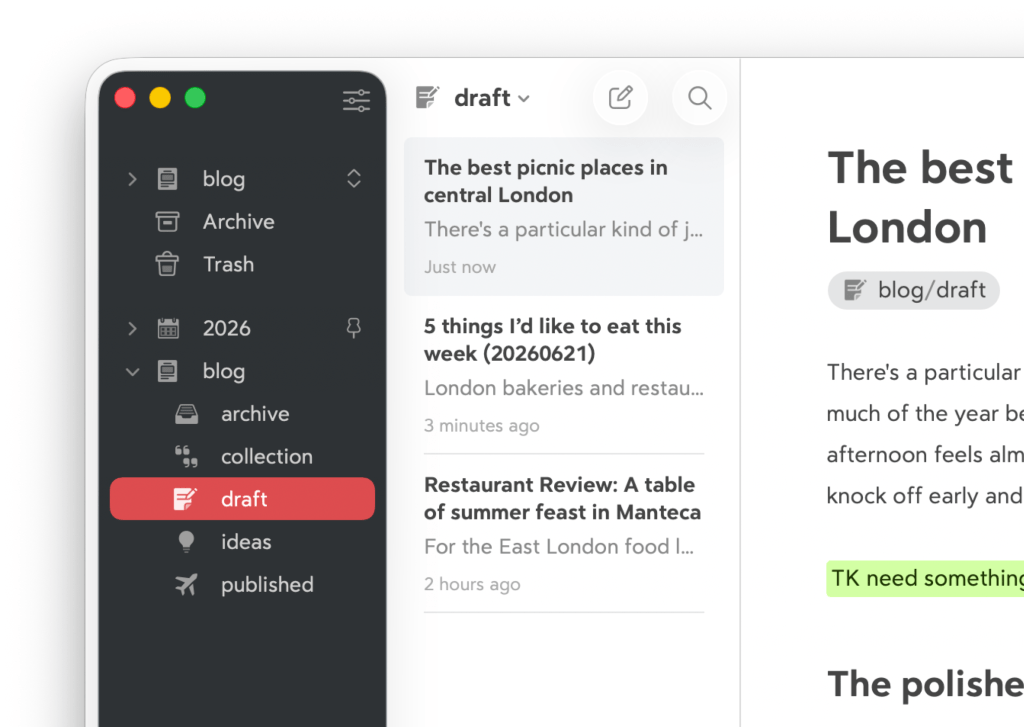
He then clicks into the subtag #draft and continues his writing. All his work projects disappear from view, and he can focus on his writing without distraction. Related tags like #2026/06 are still there, but now they only surface blog notes from that period.
At the end of the day, Alex switches back to All Notes and uses the Today entry in the Sidebar to review everything he worked on today. He writes a quick daily recap and calls it a day.
More in the update: Scoping for MCP server
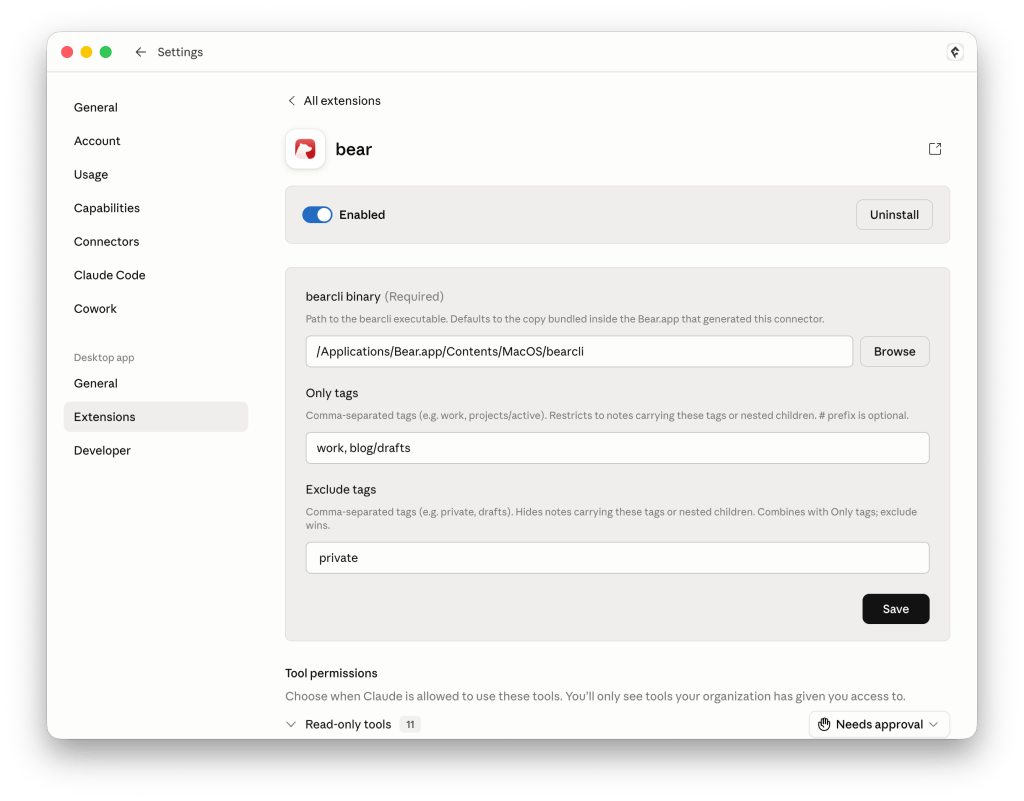
In this update, we also added scoping for MCP server, meaning you can now control exactly which notes are visible to it. For example, in Claude’s Settings under Extensions, you can set up Only tags and Exclude tags where Only tags restricts Claude to notes carrying specific tags, and Exclude tags hides notes you’d rather keep private. For example, adding private to Exclude tags means Claude will never see any note tagged as such.
Update now!
We hope Workspace gives you a new way to focus within your Bear workflow. Use it to separate work from personal projects, stay on track with a single client, or simply clear the clutter when you need to concentrate, we would love to see how it fits into your day.
If you’ve got feedback on this update, suggestions for what’s next, or just want to stay hi, reach out to us on Community Forum, Reddit, X (Twitter), Bluesky, or directly at bear@shinyfrog.net.
Happy writing!
🐻❤️📝